

Fazer upload de uma nova versão de um arquivo na ferramenta Documentos de nível de projeto
Objetivo
Para carregar uma nova versão de um arquivo na ferramenta Documentos no nível do projeto.
Coisas a considerar
- Permissões de usuário necessárias:
- Permissões "Padrão" ou "Administrador" na ferramenta Documentos de nível de projeto.
- Informações adicionais:
- Quando você faz upload de arquivos para uma pasta na ferramenta Documentos, o Procore verifica automaticamente a pasta em busca de arquivos existentes. Se um arquivo com o mesmo nome for encontrado, você poderá carregá-lo como uma nova versão do arquivo existente. Consulte Fazer upload em massa de novas versões de arquivos abaixo.
- Se você trabalha em um ambiente onde várias pessoas têm acesso para editar arquivos, é altamente recomendável que você sempre faça check-in e check-out de arquivos para evitar conflitos (por exemplo, substituir alterações de outros usuários). Consulte Fazer check-in ou check-out de arquivos na ferramenta de documentos em nível de projeto.
Vídeo
Passos
Upload a New Version of a File
- Navigate to the Documents tool.
- Locate the file you want to upload a new version of.
- Hover over or right-click on the file.
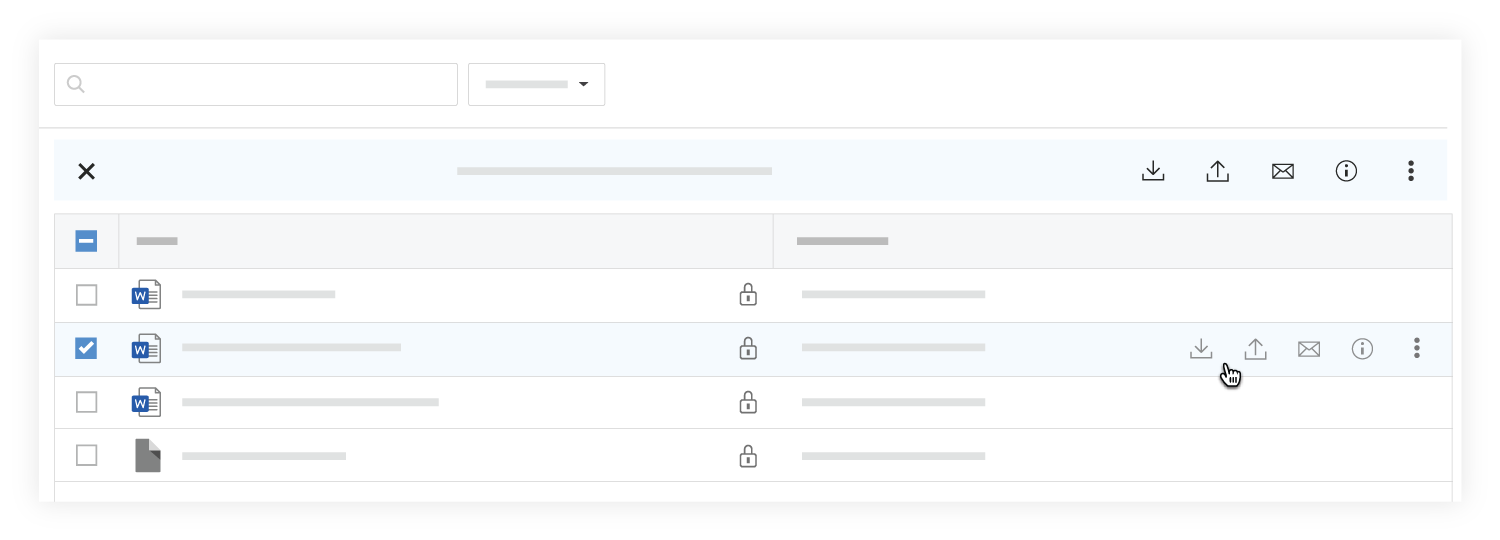
- Click New Version
 .
. - Drag and drop the file to the box under New Version.
OR- Click the box under New Version to browse for the file.
- Select the file and click Open.
- Optional: Add comments about the new version of the file.
- Click Upload.
Bulk Upload New File Versions
- Navigate to the Documents tool.
- Open the folder you want to upload files to.
- After selecting files on your computer, drag and drop them to the center panel of the Documents tool.

OR
- Click the + New drop-down menu and select File Upload.
- Select the files you want to upload from your computer.
- Click Open.
- A window opens with a message that files with the same name already exists in the folder.

- Ensure any files you want to upload new versions of have Upload as new version selected.
- Click Continue Upload.
Note: The files automatically begin uploading as new versions.