

Como uso o modelo de inspeção “[Procore] SWPPP - Lista de verificação de águas pluviais no local de construção” em meu projeto?
Histórico
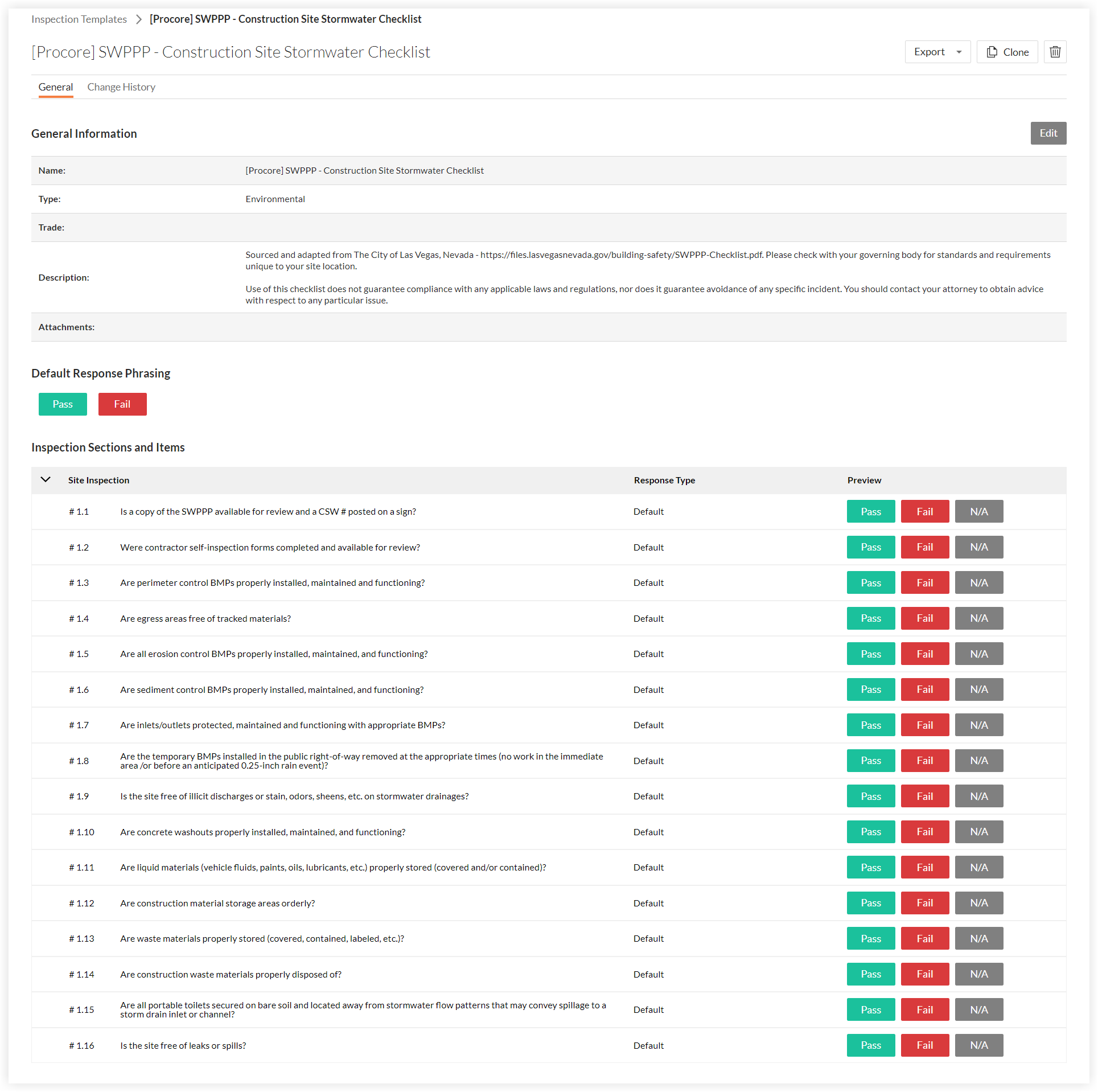
O Procore adicionou um novo modelo de inspeção chamado "[Procore] Planos de Prevenção de Poluição de Águas Pluviais - Lista de verificação de águas pluviais no canteiro de obras". Esse modelo de inspeção foi adicionado automaticamente à ferramenta Inspeções de nível de empresa para todas as empresas que têm a ferramenta Inspeções habilitada. Consulte as etapas abaixo para ver as instruções sobre como adicionar esse modelo à ferramenta Inspeções de um ou mais dos seus projetos.
Recomendamos que você verifique com sua direção os padrões e requisitos exclusivos ao local da sua construção.
Importante
O uso desse modelo não garante a conformidade com nenhuma lei e regulamento aplicável, nem garante a prevenção de qualquer incidente específico. Recomendamos que você entre em contato com seu advogado para obter orientação sobre qualquer questão específica.Visualização
Etapas
- Etapa 1: opcional. Editar o modelo de inspeção no nível de empresa
- Etapa 2: adicionar o modelo de inspeção a um projeto
- Etapa 3: opcional. Editar o modelo de inspeção no nível de projeto
- Etapa 4: realizar a inspeção
- Etapa 5: fechar a inspeção
Etapa 1: opcional. Editar o modelo de inspeção no nível de empresa
Se você quiser fazer alterações no modelo de inspeção que venham a afetar todos os projetos nos quais o modelo é usado, recomendamos que edite o modelo de inspeção no nível de empresa antes de adicionar o modelo aos seus projetos.
Consulte Editar um modelo de inspeção de nível de empresa OU
Clique aqui para visualizar as etapas.
- Navigate to the Company level Inspections tool.
- Locate the template and click Edit.
- Under General Information, click on any editable field to make your changes.
- Under Inspection Items, click on any editable field to make your changes.
- To delete a template section or item, click the trash bin
 icon at the end of the section or item.
 - To bulk edit your inspection items, mark the checkbox next to the # symbol to select all the sections of your inspection.

- Choose from additional editing options:
Bulk Edit Response Type
- Click Edit Response Type
- Select the response type from the response type menu.
- Click Apply.
Bulk Edit Inspection Requirements
- Click Edit Require Observations On or Edit Require Photos On.
Note: If the requirement is not provided by the user, the inspection response will not be saved.- Status: You can select either a 'Conforming' or 'Deficient' status, or you can select both.
- Responses: You can select either 'Pass', 'Fail', or 'N/A' responses, or you can select a combination of the three. You can also select 'Not Required'.
- Click 'X' to remove any of your response types.
Add Sections and Items
- Click + Add section to add more sections.
- Click + Add item to add more items.
- Click + Quick Add to quickly add multiple section items at one time.
Note: You can reorder individual items within a section of your template by dragging your item with the reorder icon. To reorder an entire section, click the toggle on
  icon next to Reorder Sections and drag the sections of your choice. Turn off Reorder Sections to continue creating your template.
 - Click + Add References to attach files from your computer for additional inspection item details.
- Click Update to save your changes.
Etapa 2: adicionar o modelo de inspeção a um projeto
É necessário adicionar o modelo de inspeção à ferramenta Inspeções de nível de projeto para que ele possa ser usado nesse projeto.
Consulte Adicionar modelos de inspeção de nível de empresa ao seu projeto OU
Clique aqui para visualizar as etapas.
- Navigate to the Project level Inspections tool.
- Click the Configure Settings
 icon.
icon.
Note: For more information on configuring your advanced settings, see Configure Advanced Settings: Inspections. - Click the Templates tab.
- Click Import Company Templates.
Note: This button will be disabled if you have not first Created a Company Level Inspection Template. - Mark the checkbox next to one or more company inspection templates to use on this project.
Notes:- Only templates that you haven't added to your project will appear for you to select.
- To narrow your options down, filter templates by Type or Trade by clicking the Add Filter drop-down menu.
- Click Import Templates.
Note: Project templates may be modified here throughout the duration of the project, but changes will only be reflected on project inspections that are created from the modified template.
Etapa 3: opcional. Editar o modelo de inspeção no nível de projeto
Se você quiser fazer alterações no modelo de inspeção que venham a afetar apenas um projeto no qual o modelo é usado, recomendamos que edite o modelo de inspeção no nível de projeto depois de adicioná-lo ao seu projeto.
Consulte Editar um modelo de inspeção de nível de projeto OU
Clique aqui para visualizar as etapas.
- Navigate to the Project level Inspections tool.
- Click the Configure Settings
 icon.
icon. - Click Templates.
- Click Edit next to the inspection template that you want to edit.
Note: An icon indicates a Company level Inspection template has been added to the project.

- Under 'General Information', edit the following fields:
Note: If the template you are editing is a Company level Inspection template, certain fields cannot be edited in the Project level Inspections tool. These fields are indicated by an icon.
- Name : Title your inspection. This will show up on your inspections log page and will help you differentiate between your inspections within your project. This is a required field.
- Type : Choose from the list of inspection types added to the company (e.g. Safety). (Note: If you have not added inspection types to your project, see Configure Advanced Settings: Company Level Inspections. You will need to have 'Admin' level permissions on the Company level Inspections tool.)
- Trade (Optional): Give your inspection a trade (e.g. Electrical, plumbing). (Note: Your company's trade list can be managed at your company level's Admin tab under 'Trade Configuration.)
- Company Description : Company level Inspection templates may include a separate description.
- Description (Optional): Include any relevant details about the inspection.
- Attachments: Attach any relevant files to the templates by clicking Attach Files.
Note: If you try to create an inspection template without a name or with a name that already exists, there will be an error message that details the reason. You can create an inspection with the same name as one in the Recycle Bin, but once you name it, you cannot restore a template in the Recycle Bin without first editing an inspection template to change the name.
- Name
- To edit existing sections and items on the template, click on the field you want to edit.
Note: Existing sections and items cannot be edited on Company level inspection templates in the Project level Inspections tool. - To delete a template section or item, click the trash bin icon to the right of the item heading.
- To bulk edit your inspection items, mark the checkbox next to the # symbol to select all the sections of your inspection.

- Choose from additional editing options:
Bulk Edit Response Type
- Click Edit Response Type
- Select the response type from the response type menu.
- Click Apply.
Bulk Edit Inspection Requirements
- Click Edit Require Observations On or Edit Require Photos On.
Note: If the requirement is not provided by the user, the inspection response will not be saved.- Status: You can select either a 'Conforming' or 'Deficient' status, or you can select both.
- Responses: You can select either 'Pass', 'Fail', or 'N/A' responses, or you can select a combination of the three. You can also select 'Not Required'.
- Click 'X' to remove any of your response types.
Add Sections and Items
- Click + Add section to add more sections.
- Click + Add item to add more items.
- Click + Quick Add to quickly add multiple section items at one time.
Note: You can reorder individual items within a section of your template by dragging your item with the reorder icon. To reorder an entire section, click the toggle on icon next to Reorder Sections and drag the sections of your choice. Turn off Reorder Sections to continue creating your template. - Click + Add References to attach files from your computer for additional inspection item details.
- Click Update to save your changes.
Etapa 4: realizar a inspeção
Dica
Também é possível realizar inspeções usando os aplicativos móveis do Procore para iOS e Android. Consulte Realizar uma inspeção (iOS) e Realizar uma inspeção (Android).Consulte Realizar uma inspeção OU
Clique aqui para visualizar as etapas.
Etapa 5: fechar a inspeção
Após a realização da inspeção, a etapa final é fechar a inspeção.
Consulte Fechar uma inspeção OU
Clique aqui para visualizar as etapas.
- Navigate to the Project level Inspections tool.
- Click View next to the inspection you want to close.
- Click the vertical ellipsis
 and select Close.
 - Click Confirm.
 .
.