

Revise um quadro de horários (Android)
Fundo
Depois de criar um planilha de horas, você pode obter assinaturas de seus funcionários de campo. (Consulte Assinar uma planilha de horas (Android) e Assinar uma planilha de horas (iOS).) Em seguida, você poderá revisar as planilhas de horas para verificar a precisão.
Exemplo
Como cada empresa de construção é diferente, os membros da equipe que você escolher para realizar seu processo de cronometragem podem diferir das funções e considerações neste exemplo:
-
Encarregados, superintendentes e outros supervisores. Esses são os membros da equipe que criarão entradas de cartão de ponto e planilhas de horas em um projeto. No mínimo, você deve fornecer a esses membros da equipe permissões de nível "Somente leitura" ou "Padrão" na ferramenta Planilhas de horas de nível de projeto e a permissão granular "Revisar e editar planilhas de horas" em um modelo de permissão do projeto. Isso permite que esses usuários criem novas planilhas de horas com o status "Pendente" e alterem o status de um planilha de horas para "Revisado" na ferramenta Planilhas de horas de nível de projeto. Eles também podem alterar o status de "Pendente" para "Revisado" nas planilhas de horas do projeto que têm permissão para visualizar usando a ferramenta Planilhas de horas de nível de empresa.
-
Gerentes de projeto e outros administradores ou executivos. Esses são os membros da equipe que aprovarão as planilhas de horas "Revisadas" antes de entregá-las à equipe de contabilidade/folha de pagamento para processamento. No mínimo, você deve fornecer a esses membros da equipe "Administrador" na ferramenta Planilhas de horas de nível de projeto. No entanto, se eles forem responsáveis por monitorar a cronometragem em vários projetos, você também pode conceder permissões de nível "Administrador" na ferramenta Planilhas de horas de nível de empresa.
-
Contabilidade, Folha de Pagamento e outros Administradores ou Executivos. Esses são os membros da equipe que marcarão as planilhas de horas com o status "Concluído". Esse recurso está disponível apenas na ferramenta Planilhas de horas de nível de empresa, portanto, você deve atribuir a esses usuários permissões de nível "Administrador" na ferramenta Planilhas de horas de nível de projeto. Isso permite que os usuários acessem a ferramenta Planilhas de horas de nível de empresa. Ele também permite que os usuários vejam os dados do projeto na ferramenta de nível de empresa.
Coisas a considerar
-
Permissões de usuário necessárias
Ponta
Você pode editar um entrada no cartão de ponto se necessário.
Pré-requisitos
-
Crie um planilha de horas de uma das seguintes maneiras:
Passos
-
Revisar uma entrada individual no cartão de ponto
-
Revisar uma planilha de horas
Revisar uma entrada individual no cartão de ponto
-
Acesse a ferramenta Planilhas de horas do projeto em seu dispositivo móvel Android.
-
Navegue até o entrada no cartão de ponto que deseja revisar.
-
Toque no entrada no cartão de ponto e revise-o.
-
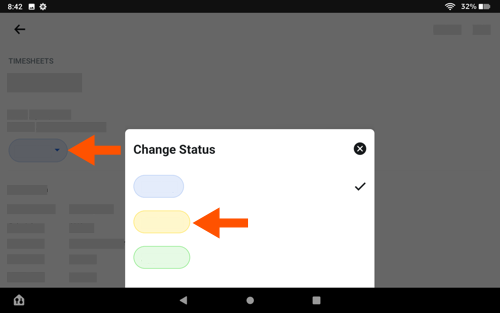
Toque no status e toque em Revisado.
-
Repita as etapas acima para cada entrada no cartão de ponto no planilha de horas até aprovar todas as entradas no planilha de horas.
-
Siga para Revisar uma Planilha de horas abaixo.
Revisar uma planilha de horas
-
Acesse a ferramenta Planilhas de horas do projeto em seu dispositivo móvel Android.
-
Toque no planilha de horas que deseja revisar.
-
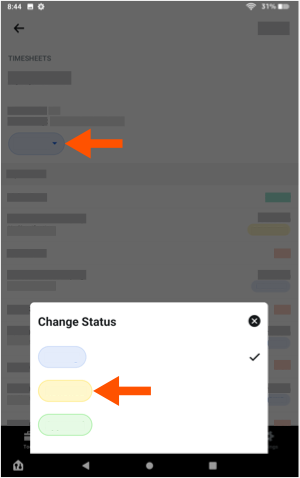
Toque no status e toque em Revisado.
-
Repita as etapas acima para cada planilha de horas que quiser revisar.